Powerful features, simple to use
Professional accounting, invoicing and customer tools — built for Jordanian businesses.
The essential invoicing tools in one system
For service businesses, without stock management. Businesses that sell goods from a warehouse are better served by full ESAS.
Invoices and quotations
Turn a quotation into an invoice in a single step, with serial numbers that never repeat.
Receipts
Record what a customer pays in cash, by cheque or by transfer, and match it to their invoices.
Arabic PDF with your logo
A printed Arabic invoice with your company's logo and QR code, ready to send.
Statements and ageing
Who owes you, how much and since when, in one statement per customer.
Sales tax summary
Sales and their tax at each rate, ready for your tax return.
Web and mobile app
Issue an invoice from your office or your phone, on the same data.
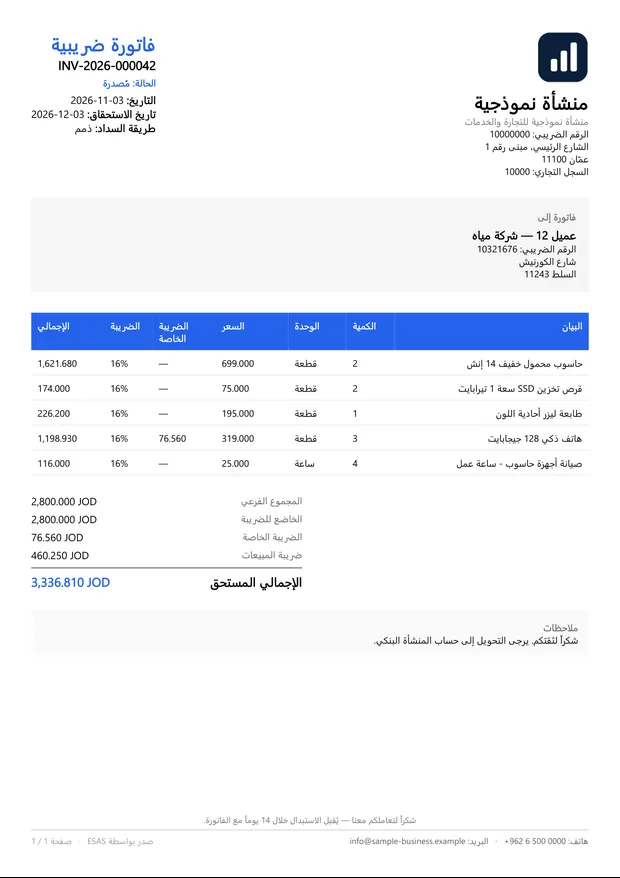
The invoice the way a Jordanian accountant expects it
Enter invoice lines with different tax rates on the same invoice, and print it in Arabic with your company's logo.
- 1The special tax before the general oneAs a rate or a fixed amount per unit, then sales tax on the price plus the special tax.
- 216%, exempt, zero-rated and the reduced ratesAll on one invoice, each shown in the sales tax summary.
- 3Three decimals for the dinarRounding at line level, and one saved amount that the invoice, the entry and the file sent all read.

A point of sale that keeps going when the internet drops
A full till screen for shops and showrooms, with barcodes, categories and a touch number pad.
- 1Selling offlineSales are kept on the device and uploaded automatically when the internet is back, never twice.
- 2Closing a shift with a blind countThe cashier enters the cash without seeing what is expected, and the shortage or surplus is posted automatically.
- 3Stock updated with every saleThe quantity on hand shows on every item straight away.

Treasury and banks, reconciled without side spreadsheets
Import the bank statement, let the system suggest matches by reference and amount, then approve them in one click.
- 1Bank reconciliation with suggestionsThe bank side and the books side next to each other, with the difference in front of you.
- 2Post-dated and returned chequesA cheque portfolio, a register and a follow-up board for every cheque until it is collected.
- 3Withholding tax on paymentWorked out automatically on supplier payments, with a report and a withholding certificate.

Every department of your company, on the same screen
Real screens from the system, with a demo company's data.
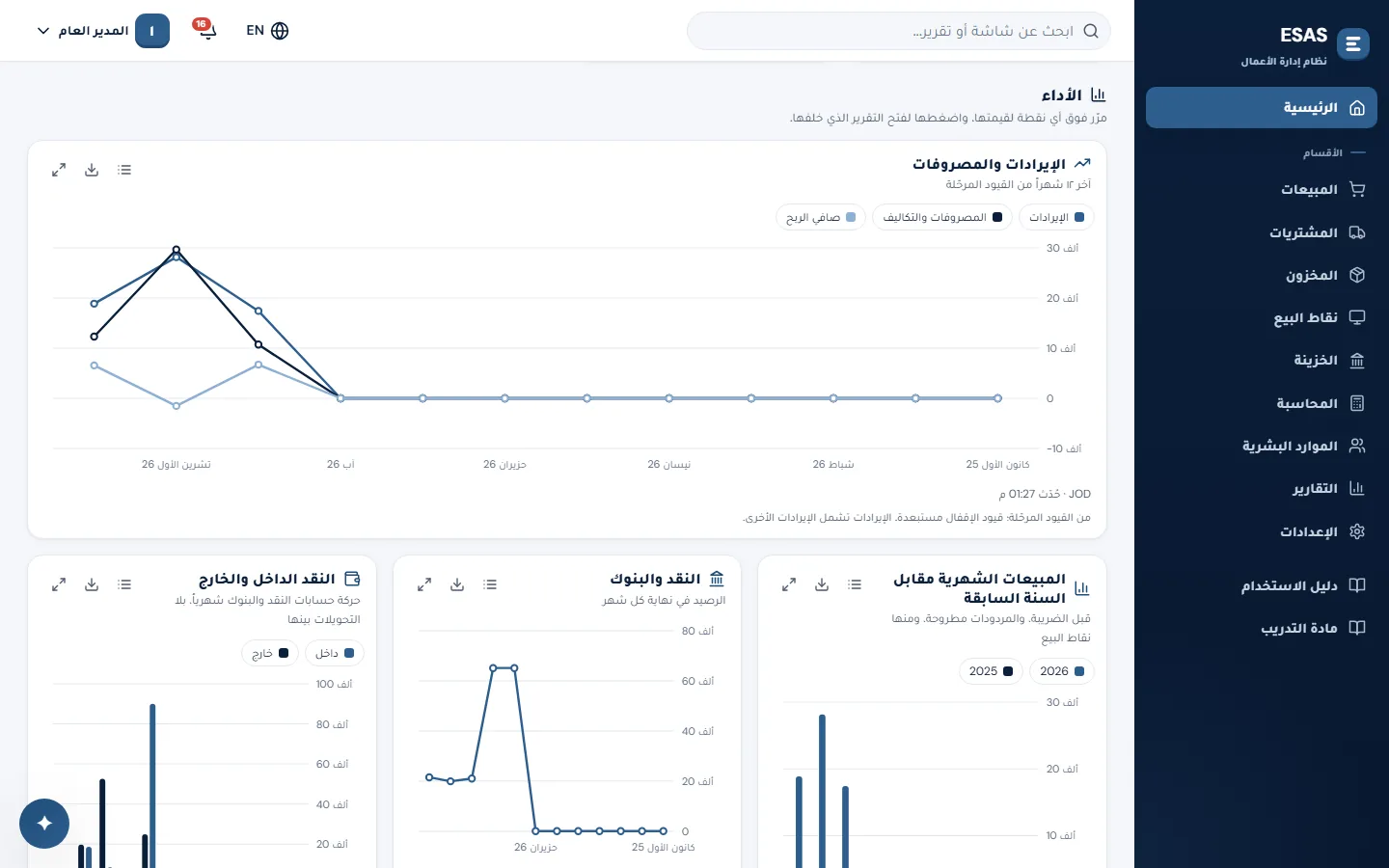
Performance: Revenue, expenses, net profit and debt ageing; click any point to open the report behind it.
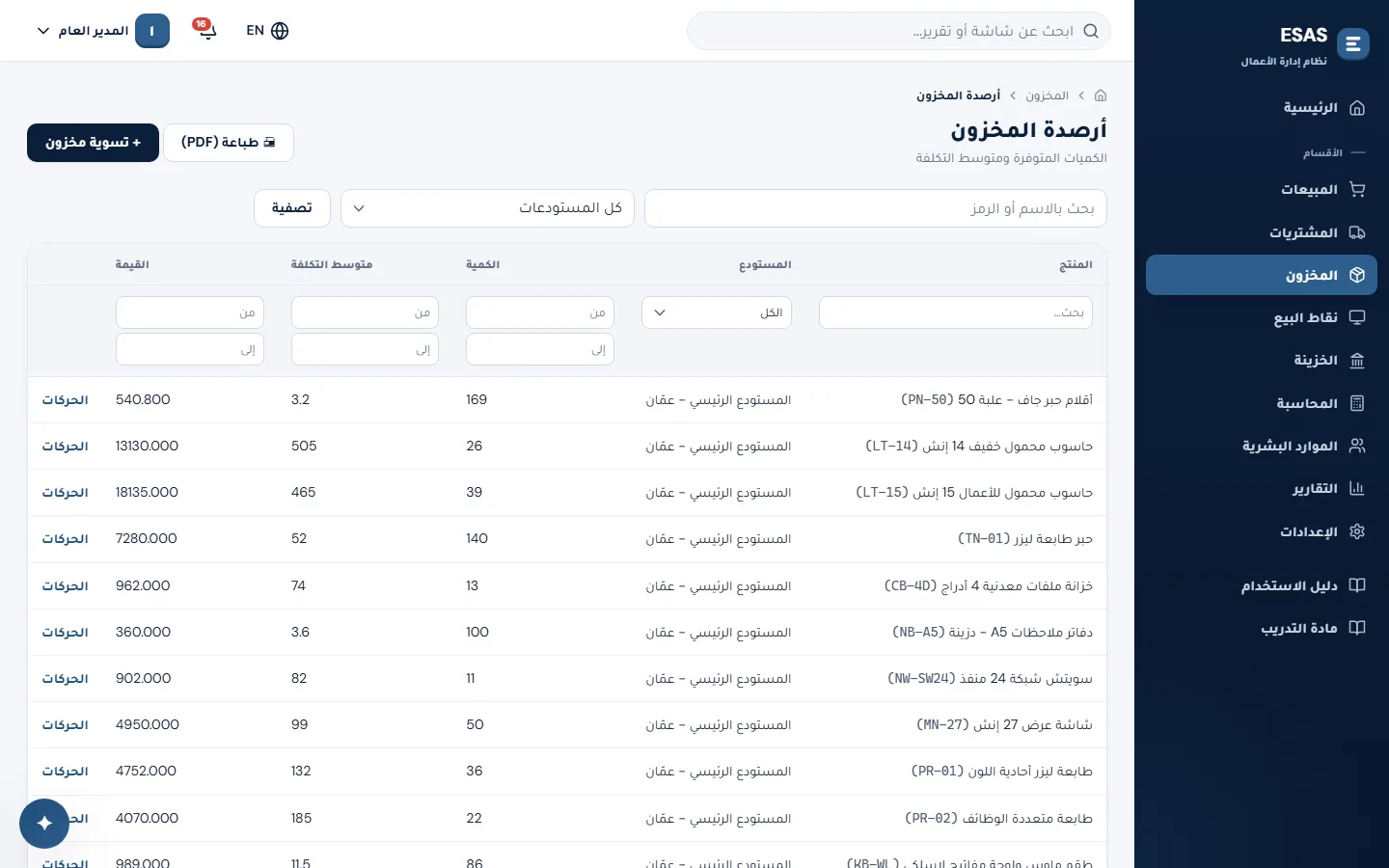
Stock: Every warehouse's balances by quantity and average cost, with transfers, stock counts and shortages.
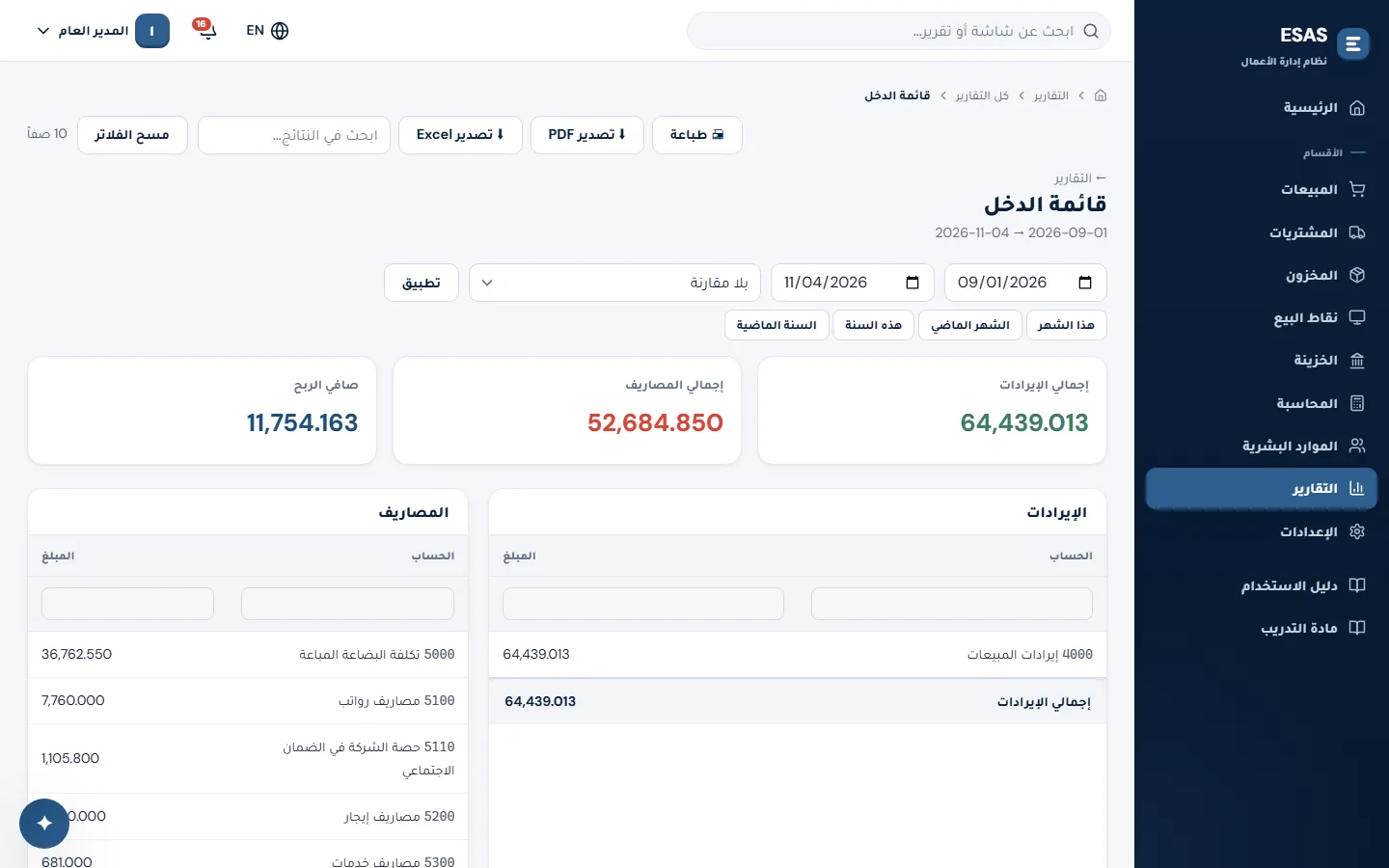
Reports: About 55 management reports, by period and with comparisons, exported to PDF and Excel.
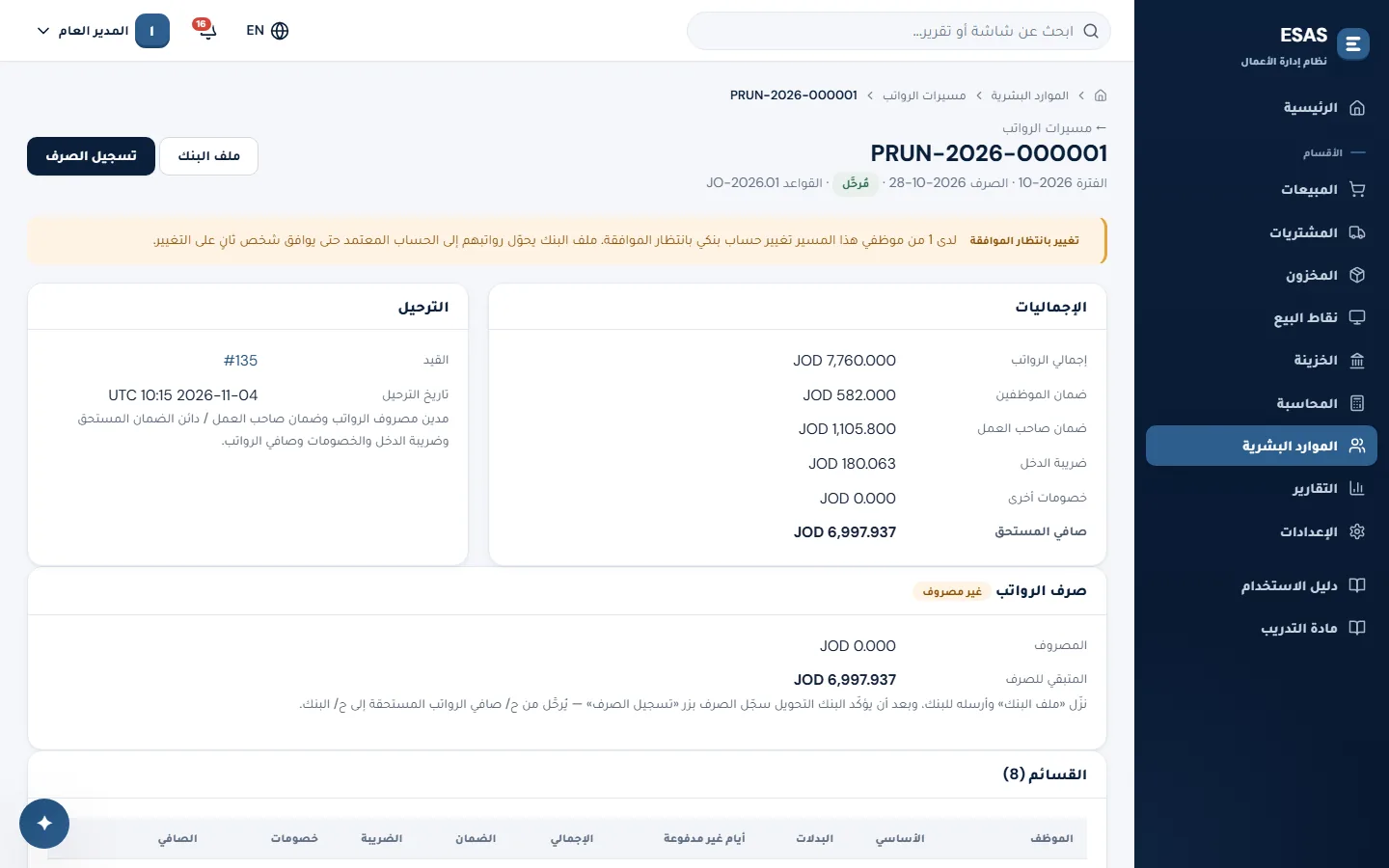
Payroll: Social security and income tax on salaries with editable rules, monthly sheets and bank files.
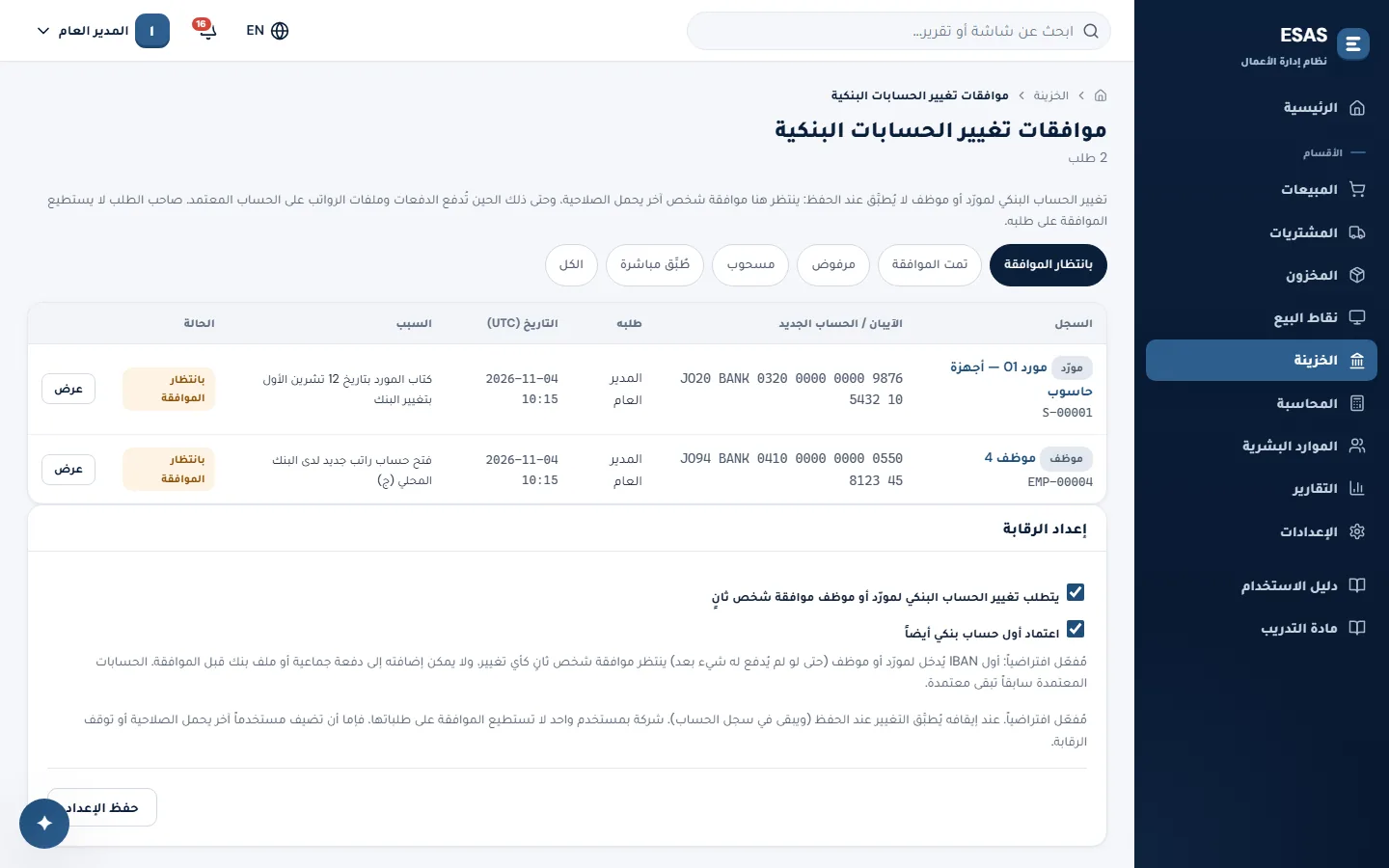
Approvals: A manual journal entry stays a draft until another user approves it; nobody approves their own entry.
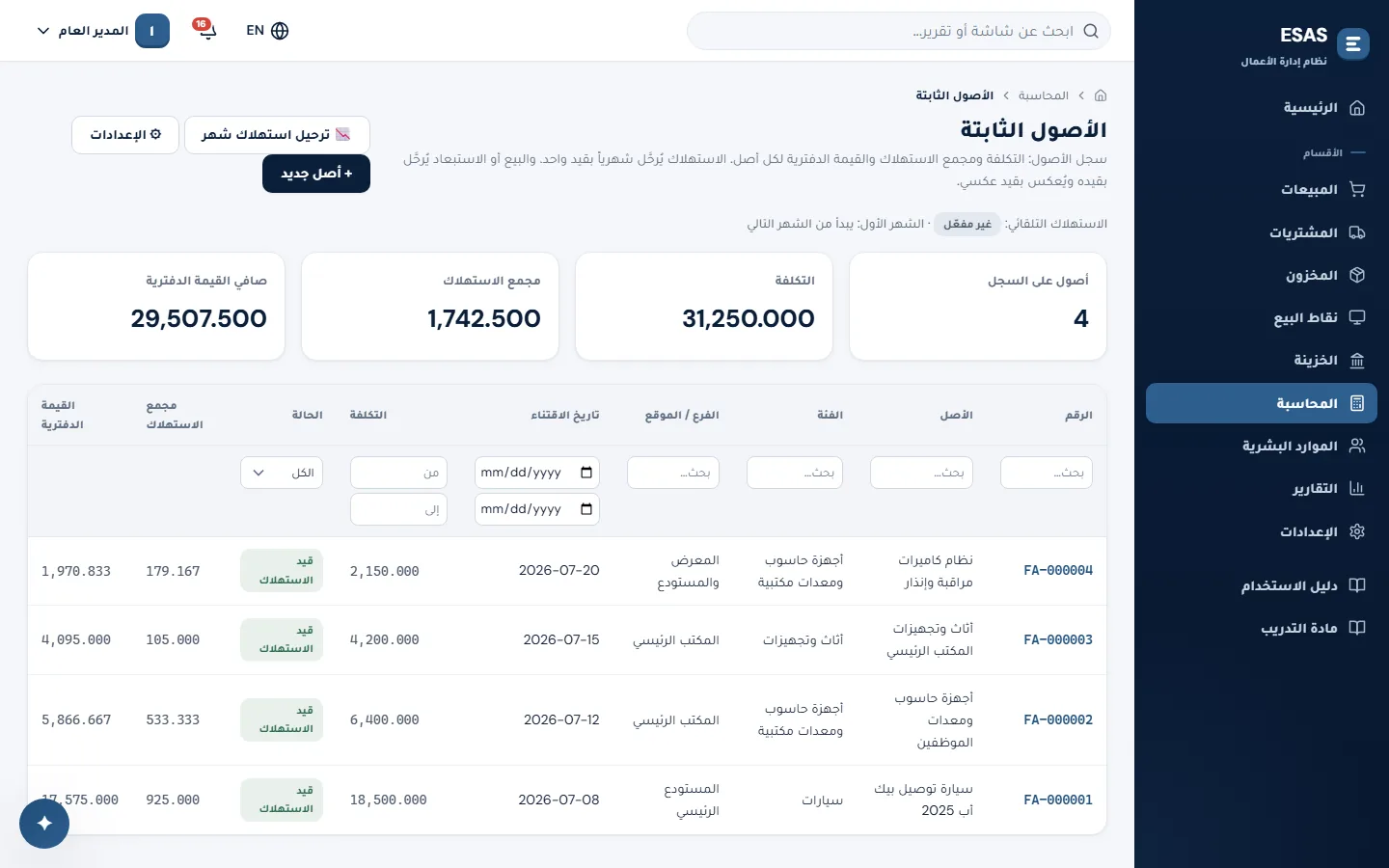
Fixed assets: Categories and depreciation rates you set yourself, and a tax depreciation book kept apart from the accounting one.
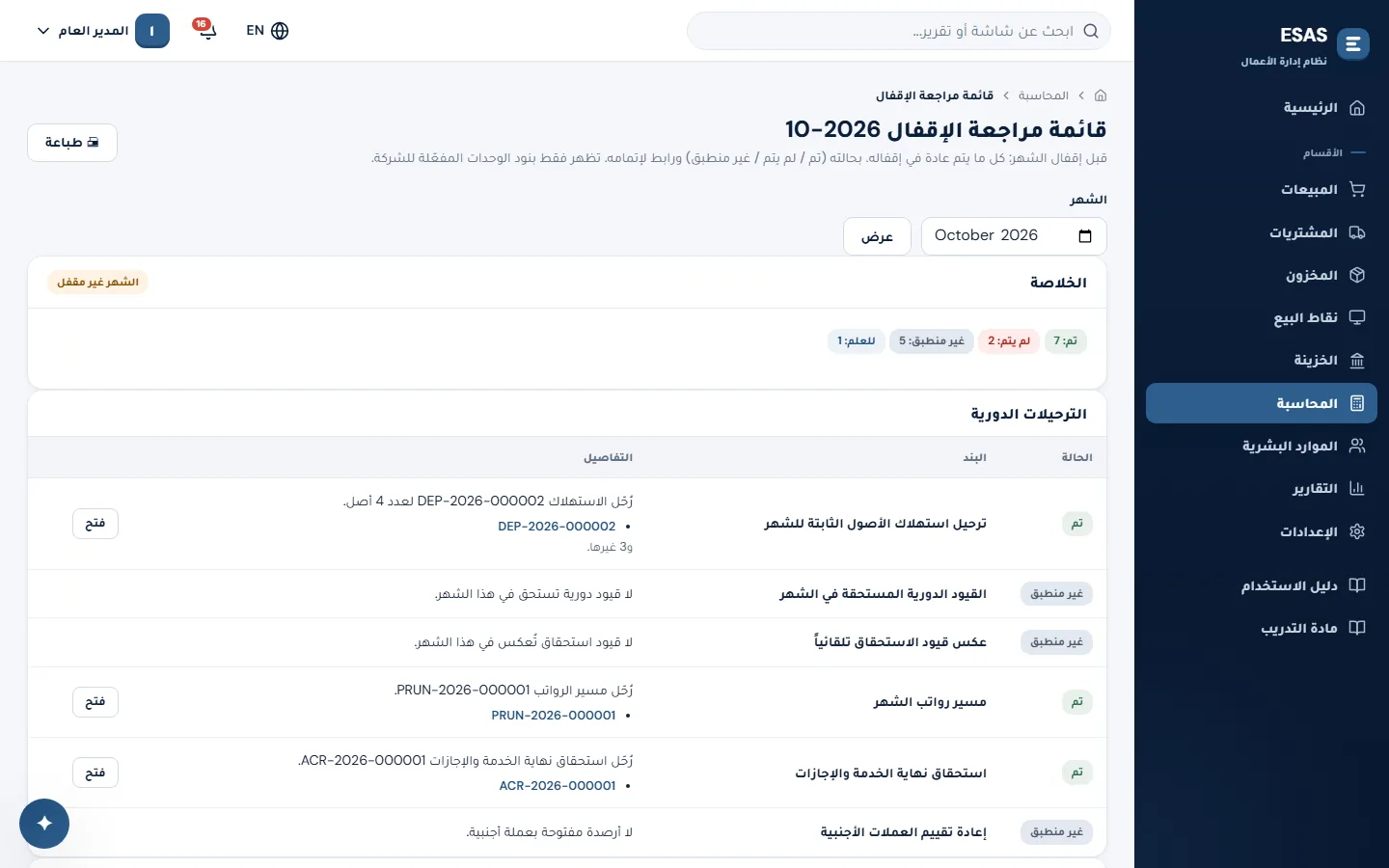
Month close: A checklist before closing, then the period is locked; reopening it needs a special permission and is logged.
How your invoice reaches JoFotara
Four steps, the first of them carried out only once. If the connection is interrupted, the invoice remains in the log until it is accepted.
- 01Enter the link details once
The income source sequence number, the client ID and the secret key, stored encrypted, with a test environment before production.
- 02Issue the invoice and send it in a single step
A «Send to JoFotara» button on the invoice itself, or from the list of unsent invoices.
- 03Every invoice followed through
If the connection fails the system retries automatically, and the status shows in the reconciliation report.
- 04Correct with a linked credit note
Created from the original invoice and sent with its reference, never more than the invoice's value.
Our team sets up the link with you, beginning in the test environment.

Our team in Amman answers your enquiries in Arabic by WhatsApp and by telephone: choosing the right plan, setting up the JoFotara link, or arranging a demonstration of the full system.
- Phone+962 79 120 7973
- E-mailinfo@es.jo
- HoursSunday to Thursday, 9 am – 5 pm
- AddressAmman, Jordan